
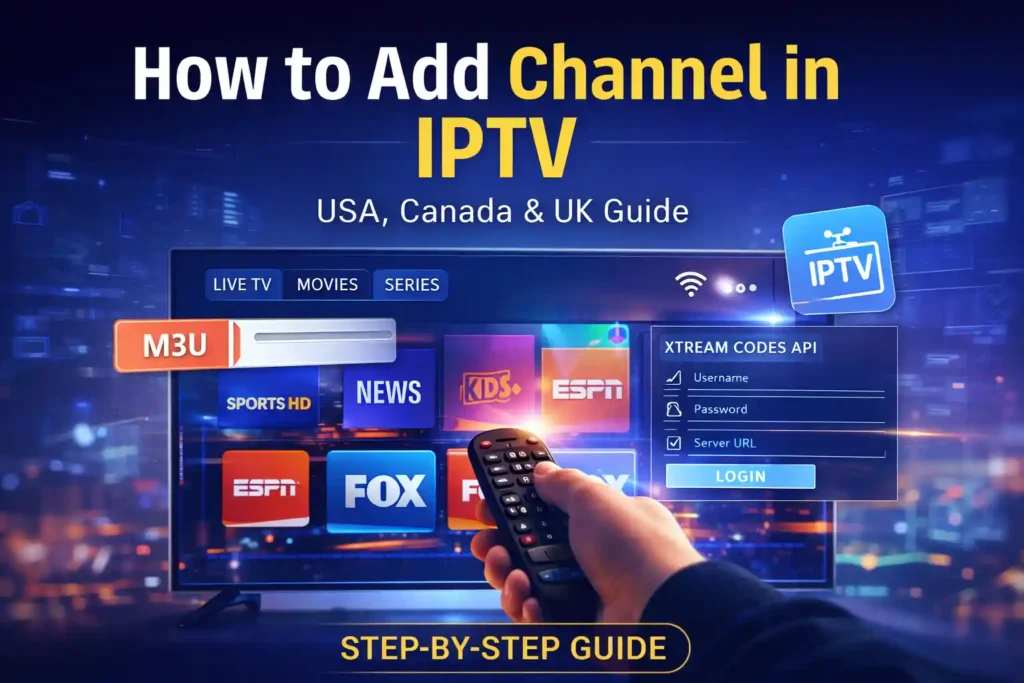
If you’re looking for how to add channel in IPTV in the USA, Canada, or the UK, this guide explains everything in a simple and beginner-friendly way.
The steps are the same whether you use a Smart TV, Firestick, Android TV, or IPTV box.
How IPTV Channels Are Added (Important to Know)
In the US, Canada, and UK, IPTV channels are not added one by one.
Instead, channels are delivered automatically through:
- M3U playlist links
- Xtream Codes login (username & password)
Once connected, all channels load at the same time.
Table of Contents
Method 1: Add IPTV Channels Using an M3U Playlist
This is the most common way people add channels in Lemo IPTV across North America and the UK.
Steps:
- Open your IPTV app
- Go to Settings → Add Playlist
- Choose M3U URL
- Enter:
- Playlist name
- M3U URL from your IPTV provider
- Save and restart the app
Your IPTV channels will appear automatically.
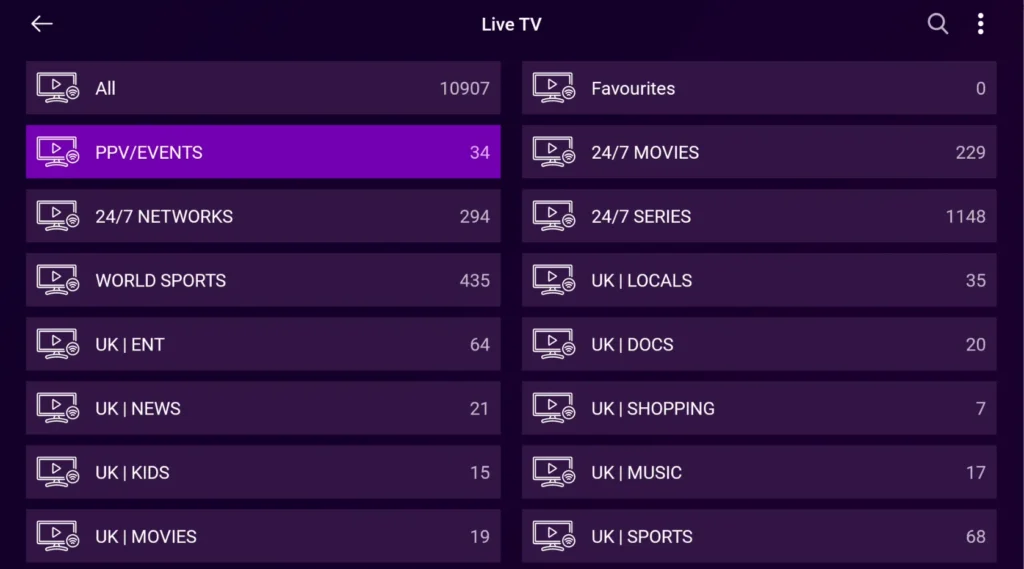
Method 2: Add IPTV Channels Using Xtream Codes
Xtream Codes is faster and very popular in USA, Canada, and UK IPTV services.
You need:
- Username
- Password
- Server URL
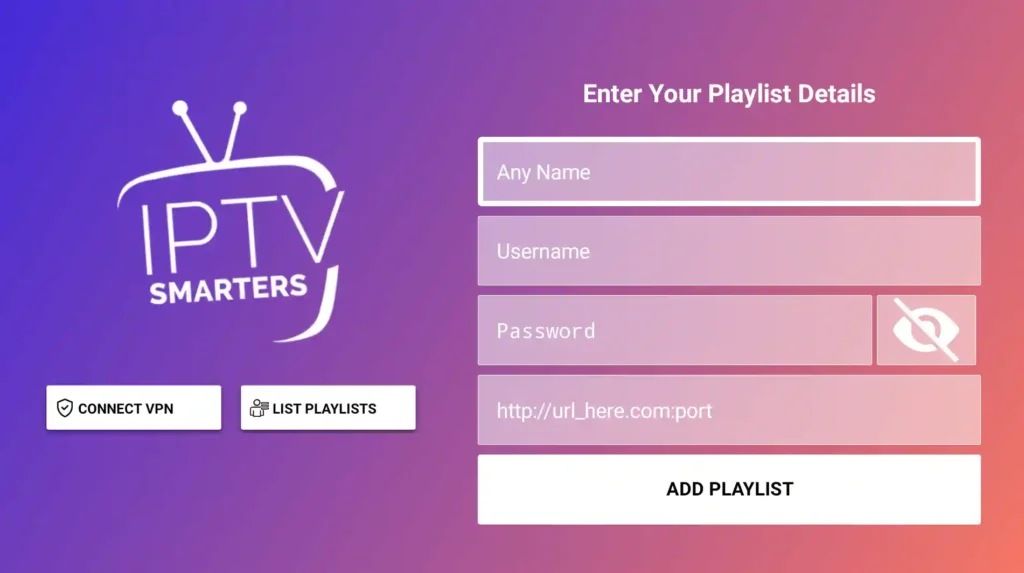
Steps:
- Open your IPTV app
- Select Login with Xtream Codes API
- Enter your details
- Click Login
Channels, movies, and series will load instantly.
How to Refresh IPTV Channels
If some channels are missing:
- Open IPTV app settings
- Click Reload Playlist / Refresh Channels
- Restart the app
This fixes most channel issues.
Common IPTV Problems (US / CA / UK Users)
Channels not showing?
- Check your internet connection
- Make sure your playlist or login details are correct
Buffering or freezing?
- Use stable broadband (minimum 25 Mbps recommended)
- Avoid public Wi-Fi
Channels disappeared?
- Reload the playlist
- Restart the IPTV app
Devices That Work Best for IPTV
IPTV works well on:
- Smart TVs (Samsung, LG, Android TV)
- Amazon Firestick
- Android TV boxes
- Mobile phones & tablets
- IPTV boxes
As long as the app supports M3U or Xtream Codes, it will work.
Why You Can’t Add IPTV Channels Manually
Many new users ask this, especially in the US and UK.
❌ You cannot add channels one by one
✅ Lemo IPTV uses playlists
✅ Channels are updated automatically by the provider
This is how IPTV works worldwide.
Final Thoughts: How to Add Channel in IPTV
To add IPTV channels correctly:
✔ Use M3U playlist or Xtream Codes
✔ Refresh playlists when needed
✔ Use a stable internet connection
✔ Don’t try to add channels manually
Now you know exactly how to add channel in IPTV in the USA, Canada, and UK — simple, fast, and effective.
Frequently Asked Questions – How to Add Channel in IPTV
How do I add channel in IPTV?
To add channels in IPTV, you need either an M3U playlist URL or Xtream Codes login details (username, password, and server URL). Once you enter these into your IPTV app, all channels will load automatically.
Can I add IPTV channels manually one by one?
No. IPTV does not support adding channels one by one. Channels are delivered in bulk through playlists provided by your IPTV service.
Why are my IPTV channels not showing?
This usually happens due to an incorrect playlist URL, expired subscription, or app cache issues. Try reloading the playlist and restarting the IPTV app.
Does this work in the USA, Canada, and the UK?
Yes. Adding IPTV channels works the same way in the USA, Canada, and the UK, as long as you use a compatible IPTV app and have a stable internet connection.
Which IPTV apps support adding channels?
Most IPTV apps support M3U playlists and Xtream Codes, including apps for Smart TVs, Firestick, Android TV, IPTV boxes, and mobile devices.
What internet speed is recommended for IPTV?
For smooth streaming in the US, Canada, and UK, a minimum of 25 Mbps is recommended, especially for HD and 4K channels.
Do I need to refresh IPTV channels?
Yes. If new channels are added or some are missing, refreshing or reloading the playlist will update your channel list automatically.
Why do IPTV channels buffer or freeze?
Buffering is usually caused by slow internet, overloaded servers, or Wi-Fi issues. Use a wired connection or strong Wi-Fi for best performance.